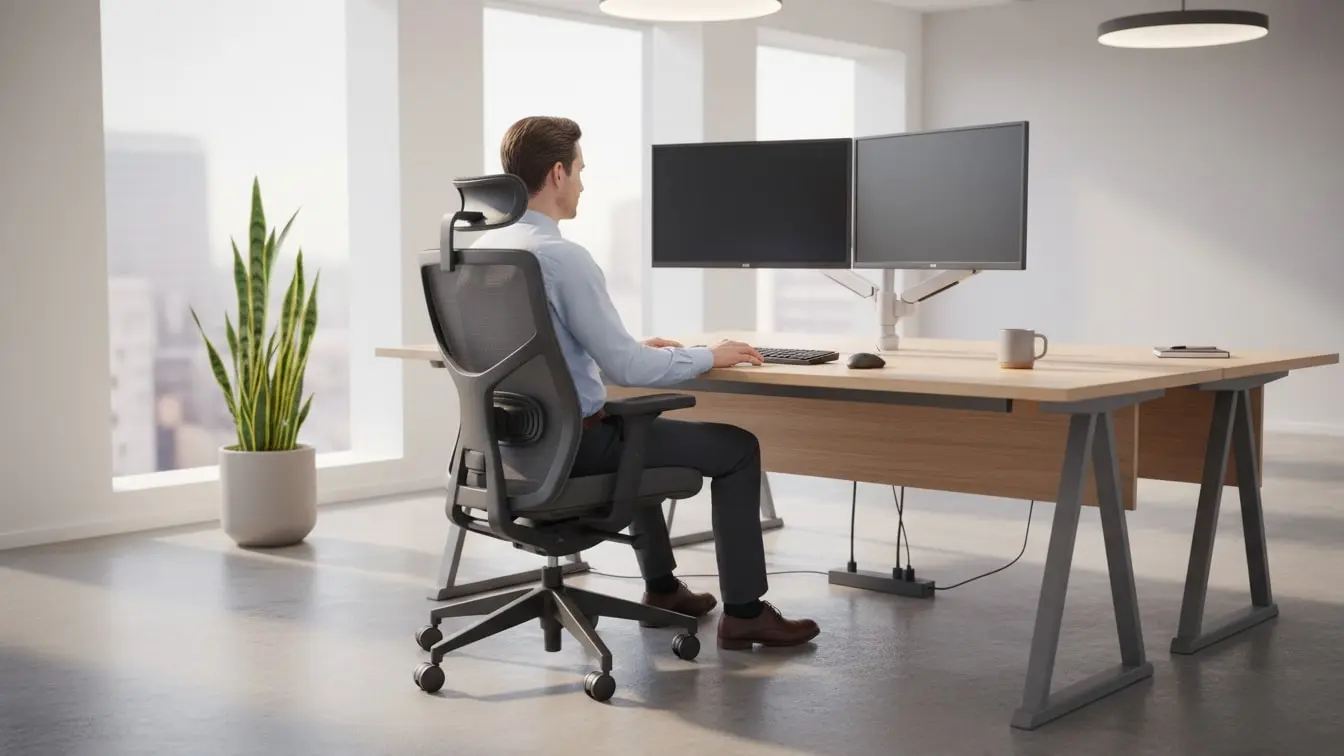
Ergonomic Safety Checklist: A Complete Guide to Workplace Ergonomics
A safe workplace should not only protect employees from obvious hazards. It should also help them work in a comfortable and healthy way. Therefore, an Ergonomic Safety Checklist helps teams spot poor posture, awkward movements, poor workstation setup, repetitive tasks, and other ergonomic risks.
Moreover, ergonomic problems can build slowly. An employee may feel fine today but develop pain or fatigue after months of poor workstation setup. Therefore, regular ergonomic checks help organizations find small issues before they become bigger problems.
An Ergonomic Safety Checklist gives safety teams a simple way to inspect workstations, equipment, work habits, and employee comfort. In addition, it helps teams record findings, assign corrective actions, and track improvements.
With eAuditor Audits & Inspections, organizations can move ergonomic inspections from paper forms to a digital process. Teams can complete checks on mobile devices, capture evidence, assign actions, and keep inspection records in one place. eAuditor also provides an existing Ergonomic Safety Checklist that covers workstation setup, seating, monitors, keyboards, lighting, work habits, and follow-up activities.
What Is an Ergonomic Safety Checklist?
An Ergonomic Safety Checklist is a structured inspection tool that helps identify ergonomic hazards in a workplace.
It focuses on how people interact with:
- Workstations
- Chairs and desks
- Computers and monitors
- Keyboards and mice
- Tools and equipment
- Manual handling tasks
- Lighting and noise
- Work methods
- Repetitive movements
- Posture and body position
As a result, safety teams can use one consistent process to review ergonomic conditions.
Furthermore, an ergonomic checklist helps employees understand what a safe and comfortable work setup looks like. It also gives managers a clear record of problems that need attention.
Why Is an Ergonomic Safety Checklist Important?
Ergonomic risks often look harmless at first. A monitor may sit a little too low. A chair may provide poor back support. A worker may reach too far for tools. However, repeated exposure can increase discomfort and fatigue.
Therefore, regular ergonomic inspections can help organizations:
- Identify ergonomic hazards early.
- Improve workstation comfort.
- Reduce awkward postures.
- Control repetitive tasks.
- Improve work methods.
- Support employee well-being.
- Track corrective actions.
- Standardize workplace inspections.
- Improve safety awareness.
- Maintain clear inspection records.
In addition, ergonomic improvements do not always require expensive equipment. Sometimes, a small adjustment to chair height, monitor position, tool placement, or work layout can make a meaningful difference.
Key Areas in an Ergonomic Safety Checklist
A strong Ergonomic Safety Checklist should cover more than just office chairs. Instead, it should consider the complete interaction between employees, equipment, tasks, and the work environment.
1. General Workplace Information
Start each inspection with basic details.
Record:
- Inspection date and time
- Workplace or department
- Workstation location
- Inspector name
- Employee or work group
- Task being assessed
- Inspection frequency
- Previous corrective actions
This information makes each inspection easier to trace and review later.
2. Workstation Setup
Next, inspect the overall workstation.
Check whether:
- The desk supports a comfortable working position.
- Desk height suits the employee.
- Frequently used items remain within easy reach.
- The employee has enough legroom.
- The workstation allows natural movement.
- Sharp edges do not create pressure points.
- Cables and equipment do not restrict movement.
- The workstation remains clean and organized.
A good workstation should support the employee rather than force the employee to adapt to an uncomfortable setup.
3. Chair Ergonomics
Then, inspect the chair.
Check that:
- The chair height can be adjusted.
- The backrest supports the lower back.
- The seat depth suits the employee.
- The seat does not press against the back of the knees.
- Armrests support the arms without lifting the shoulders.
- The chair remains stable.
- The chair has no damaged parts.
- The employee can sit comfortably while working.
The eAuditor Ergonomic Safety Checklist specifically includes chair height, lumbar support, seat depth, armrests, and backrest checks.
4. Posture and Body Alignment
After that, observe the employee's working posture.
Look for:
- Head and neck staying in a neutral position.
- Shoulders remaining relaxed.
- Elbows staying close to the body.
- Forearms remaining in a comfortable position.
- Wrists staying straight.
- Back receiving proper support.
- Feet resting comfortably.
- Excessive twisting or bending.
- Long periods in one position.
The eAuditor OSHA Ergonomic Computer Workstation Checklist also evaluates head, neck, torso, shoulders, elbows, wrists, legs, and feet to support neutral working positions.
5. Monitor and Screen Position
For computer-based work, inspect monitor placement carefully.
Check whether:
- The monitor sits at a comfortable height.
- The screen remains directly in front of the user.
- The viewing distance feels comfortable.
- The employee does not need to bend the neck to see the screen.
- Glare does not affect visibility.
- Multiple monitors are arranged sensibly.
- Screen brightness and contrast support comfortable viewing.
Poor screen placement can encourage employees to lean forward or twist their necks. Therefore, small adjustments can improve the overall workstation setup.
6. Keyboard and Mouse
Next, review input devices.
Check whether:
- The keyboard sits at a comfortable height.
- Wrists remain straight while typing.
- The mouse stays close to the keyboard.
- Employees do not need to reach repeatedly.
- The keyboard does not force awkward wrist angles.
- Input devices remain easy to use.
- Wrist support is available when appropriate.
The eAuditor ergonomic workstation template includes checks for neutral wrist position, keyboard placement, mouse placement, and related workstation conditions.
7. Manual Handling and Lifting
Ergonomics also matters outside the office.
Inspect tasks that involve:
- Lifting
- Carrying
- Pushing
- Pulling
- Reaching
- Bending
- Twisting
- Repetitive handling
- Heavy or awkward loads
Check whether employees use suitable lifting methods and mechanical aids when needed.
Furthermore, review whether tools or equipment can reduce unnecessary force. The eAuditor EHS Checklist includes ergonomic checks for proper lifting techniques and mechanical lifting aids for heavy or awkward items. (eAuditor)
8. Repetitive Tasks
Repetitive work can place repeated stress on the same muscles and joints.
Therefore, identify tasks that involve:
- Repeated hand movements
- Frequent typing
- Assembly work
- Continuous gripping
- Repeated reaching
- Long periods of standing
- Long periods of sitting
- High-frequency lifting
Then, consider task rotation, work breaks, improved tools, or changes to the work process where appropriate.
9. Tools and Equipment
The right tool can make work easier. However, the wrong tool can increase strain.
Inspect whether:
- Tools fit the task.
- Handles provide a comfortable grip.
- Employees can use tools without excessive force.
- Tools remain in good condition.
- Tools reduce awkward wrist positions.
- Heavy tools have suitable support.
- Employees receive training on correct tool use.
For industrial environments, also consider vibration, force, reach distance, and tool weight.
10. Lighting and Work Environment
Ergonomics also includes the surrounding environment.
Check:
- Lighting levels.
- Screen glare.
- Shadows.
- Noise.
- Temperature.
- Ventilation.
- Workspace comfort.
- General cleanliness.
For example, poor lighting may cause employees to lean closer to a screen or work surface. Consequently, a simple lighting adjustment can improve posture as well as visual comfort.
Ergonomic Safety Checklist Example
A practical checklist can use simple Yes, No, and N/A responses.
Ergonomic Check
Yes
No
N/A
Desk height supports comfortable work
Chair height is adjustable
Chair provides lumbar support
Feet have proper support
Monitor is at a comfortable height
Monitor is positioned directly in front
Keyboard supports neutral wrist posture
Mouse remains close to the keyboard
Workstation provides enough legroom
Frequently used items are within reach
Employee maintains neutral posture
Repetitive movements are controlled
Heavy items have suitable handling aids
Tools support safe working positions
Lighting is adequate
Glare is controlled
Employees receive ergonomic guidance
Ergonomic issues are reported
Corrective actions are assigned
Follow-up inspections are completed
This simple format makes inspections easy to understand. At the same time, teams can add comments, photos, risk ratings, and corrective actions when they find a problem.
Common Ergonomic Hazards in the Workplace
Ergonomic hazards can appear in almost any industry.
Common examples include:
Poor Posture
Employees may bend, twist, slouch, or reach because the workstation does not support natural movement.
Poor Workstation Design
A desk or chair may not fit the employee. Consequently, the employee may work in an awkward position for long periods.
Repetitive Motion
Typing, assembly, scanning, packing, or other repeated movements can create strain when teams do not manage the task properly.
Excessive Force
Employees may need to push, pull, grip, lift, or carry with too much force.
Awkward Reaching
Frequently used materials should not sit far outside the employee's comfortable reach.
Poor Tool Design
Heavy, damaged, poorly shaped, or unsuitable tools can increase physical strain.
Long Static Positions
Sitting or standing in one position for too long can increase discomfort and fatigue.
Poor Screen Position
A low, high, distant, or poorly positioned screen may encourage awkward neck or upper-body movement.
How to Conduct an Ergonomic Safety Inspection
A consistent inspection process helps teams get better results.
Step 1: Prepare the Checklist
First, select or create an Ergonomic Safety Checklist that matches the workplace.
Include questions for:
- Workstations
- Posture
- Seating
- Screens
- Input devices
- Tools
- Manual handling
- Repetitive work
- Work environment
- Employee feedback
Step 2: Observe the Actual Task
Next, watch employees perform normal work.
Do not assess the workstation only when it is empty. Instead, observe how people actually sit, stand, reach, lift, type, push, pull, and use tools.
Step 3: Identify the Risk
Then, record each problem clearly.
For example:
Monitor positioned too low, causing employee to bend the neck forward.
Clear observations make corrective actions easier to understand.
Step 4: Capture Evidence
Where appropriate, add photos or other supporting evidence.
This helps managers understand the problem without returning to the workplace for every review.
Step 5: Assign Corrective Actions
Next, define what needs to change.
For example:
- Raise monitor.
- Adjust chair.
- Reposition keyboard.
- Provide a footrest.
- Move frequently used tools closer.
- Provide a suitable handling aid.
- Review repetitive work.
- Provide ergonomic training.
Step 6: Complete Follow-Up
Finally, check whether the corrective action worked.
A fix is only useful when it solves the problem. Therefore, schedule follow-up inspections and confirm that the workplace now supports safer working conditions.
How eAuditor Audits & Inspections Handles Ergonomic Safety
Manual ergonomic inspections can create a lot of paperwork. Moreover, paper forms make it harder to compare findings across departments or track open actions.
With eAuditor Audits & Inspections, teams can digitize the entire ergonomic inspection process.
Digital Ergonomic Checklists
eAuditor provides an Ergonomic Safety Checklist that teams can use as a starting point. The checklist covers areas such as workspace setup, chair ergonomics, monitor placement, keyboard and mouse positioning, lighting, work habits, employee feedback, and follow-up.
Teams can also adapt checklist questions to match their own workplace.
Mobile Inspections
Inspectors can complete ergonomic checks digitally instead of carrying paper forms around the workplace.
Therefore, teams can record findings as they inspect each workstation or task.
Photos and Evidence
When an inspector finds a problem, they can document it with supporting evidence.
For example, a photo can show:
- Incorrect monitor height.
- Poor workstation layout.
- Unsafe tool placement.
- Awkward working position.
- Poor storage arrangement.
This makes findings easier to review.
Corrective Action Tracking
Finding a problem is only the first step.
eAuditor supports corrective action management so teams can record what needs to change, assign responsibility, and monitor progress. Its OSHA workstation inspection workflow also describes assigning corrective actions and tracking compliance status.
Standardized Inspections
Different inspectors may assess the same workplace in different ways when they use paper notes.
A digital checklist creates a more consistent process.
As a result, organizations can use the same inspection structure across:
- Offices
- Warehouses
- Manufacturing areas
- Workshops
- Laboratories
- Construction sites
- Healthcare workplaces
- Remote workstations
Reports and Records
eAuditor helps teams keep ergonomic inspection information organized.
Instead of searching through paper folders, managers can review digital records and use inspection data to understand recurring problems.
Trend Analysis
Finally, teams can review inspection findings over time.
For example, repeated findings may show that several employees need:
- Better chairs.
- Improved monitor setups.
- New tools.
- Manual handling aids.
- Ergonomic training.
- Changes to work processes.
This turns ergonomic inspections into a continuous improvement process rather than a one-time activity.
Benefits of Using an Ergonomic Safety Checklist
A well-designed checklist gives organizations a practical way to manage ergonomic risks.
Key benefits include:
- Better workstation assessments.
- Faster hazard identification.
- Consistent inspections.
- Improved employee awareness.
- Better corrective action tracking.
- Clearer inspection records.
- Easier follow-up.
- Better visibility across departments.
- More proactive safety management.
- Improved workplace comfort.
In addition, digital inspections can reduce the administrative burden that comes with paper forms.
Best Practices for Ergonomic Safety
A checklist works best when teams use it as part of a wider safety program.
Inspect Regularly
Do not wait for employees to report discomfort. Conduct regular ergonomic assessments instead.
Involve Employees
Employees understand their daily tasks better than anyone else. Therefore, ask them about discomfort, difficult movements, equipment problems, and workstation concerns.
Fix Simple Problems First
Many ergonomic problems have simple solutions.
For example, adjust a chair, move a monitor, reposition a keyboard, or bring tools closer.
Review Changes
Perform another assessment after making a significant change to a workstation, tool, task, or process.
Train Employees
Show employees how to adjust their workstations and use tools correctly.
Track Repeated Findings
If the same issue appears again and again, investigate the root cause. A repeated finding may indicate a wider process or equipment problem.
Ergonomic Safety Checklist for Different Workplaces
Every workplace has different ergonomic risks.
Office Ergonomics
Focus on:
- Chairs
- Desks
- Monitors
- Keyboards
- Mice
- Posture
- Lighting
- Screen glare
- Sitting habits
The eAuditor Office Workplace Safety Checklist includes an ergonomics section covering chair and desk height, posture, seat dimensions, back support, and seating surfaces.
Warehouse Ergonomics
Focus on:
- Lifting
- Carrying
- Pushing
- Pulling
- Reaching
- Picking
- Packing
- Material handling
- Mechanical aids
Manufacturing Ergonomics
Focus on:
- Repetitive assembly.
- Tool design.
- Workstation height.
- Standing tasks.
- Force requirements.
- Vibration.
- Reaching.
- Material placement.
The eAuditor Manufacturing Process Audit Checklist includes checks for movements that reduce ergonomic risks and the safe use of tools and materials.
Workshop Ergonomics
Focus on:
- Tool positioning.
- Workbench height.
- Heavy equipment.
- Manual handling.
- Repetitive tasks.
- Awkward postures.
Remote Work Ergonomics
Remote employees also need suitable workstations.
Encourage them to review:
- Chair support.
- Desk height.
- Screen position.
- Keyboard placement.
- Lighting.
- Working posture.
- Break habits.
How Often Should You Use an Ergonomic Safety Checklist?
The right frequency depends on the workplace and the level of risk.
However, organizations should consider ergonomic assessments:
- On a scheduled basis.
- When employees report discomfort.
- After workplace changes.
- After introducing new equipment.
- After changing work methods.
- When repetitive tasks increase.
- After an incident or injury.
- When employees move to new workstations.
Regular checks help teams identify changes before they become persistent problems.
Why Choose eAuditor for Ergonomic Inspections?
Ergonomic safety works best when inspections, actions, and follow-ups connect.
eAuditor Audits & Inspections helps bring these activities into one digital workflow.
Instead of relying on scattered paper forms, teams can:
- Select an ergonomic checklist.
- Inspect the workplace.
- Record answers.
- Add observations.
- Capture supporting evidence.
- Identify hazards.
- Assign corrective actions.
- Track completion.
- Review inspection records.
- Analyze recurring issues.
As a result, safety teams spend less time managing paperwork and more time improving workplace conditions.
Frequently Asked Questions About Ergonomic Safety Checklists
What is an Ergonomic Safety Checklist?
An Ergonomic Safety Checklist is a structured tool used to identify ergonomic risks related to workstations, posture, equipment, tools, work methods, and the workplace environment.
Why do workplaces need ergonomic inspections?
Regular inspections help identify poor workstation setups, awkward postures, repetitive tasks, excessive force, and other ergonomic concerns before they become larger problems.
What should an Ergonomic Safety Checklist include?
It should cover workstation setup, seating, posture, monitor position, keyboard and mouse placement, tools, manual handling, repetitive work, lighting, work habits, and corrective actions.
Can an Ergonomic Safety Checklist be used in manufacturing?
Yes. Manufacturing teams can use ergonomic checklists to assess repetitive movements, workstation design, tools, force, reaching, lifting, and other task-related risks.
Can an ergonomic checklist be used for office employees?
Yes. Office inspections can assess desks, chairs, monitors, keyboards, mice, posture, lighting, and other workstation conditions. https://eauditor.app/2026/09/06/ergonomic-safety-checklist-2/


Comments
Post a Comment