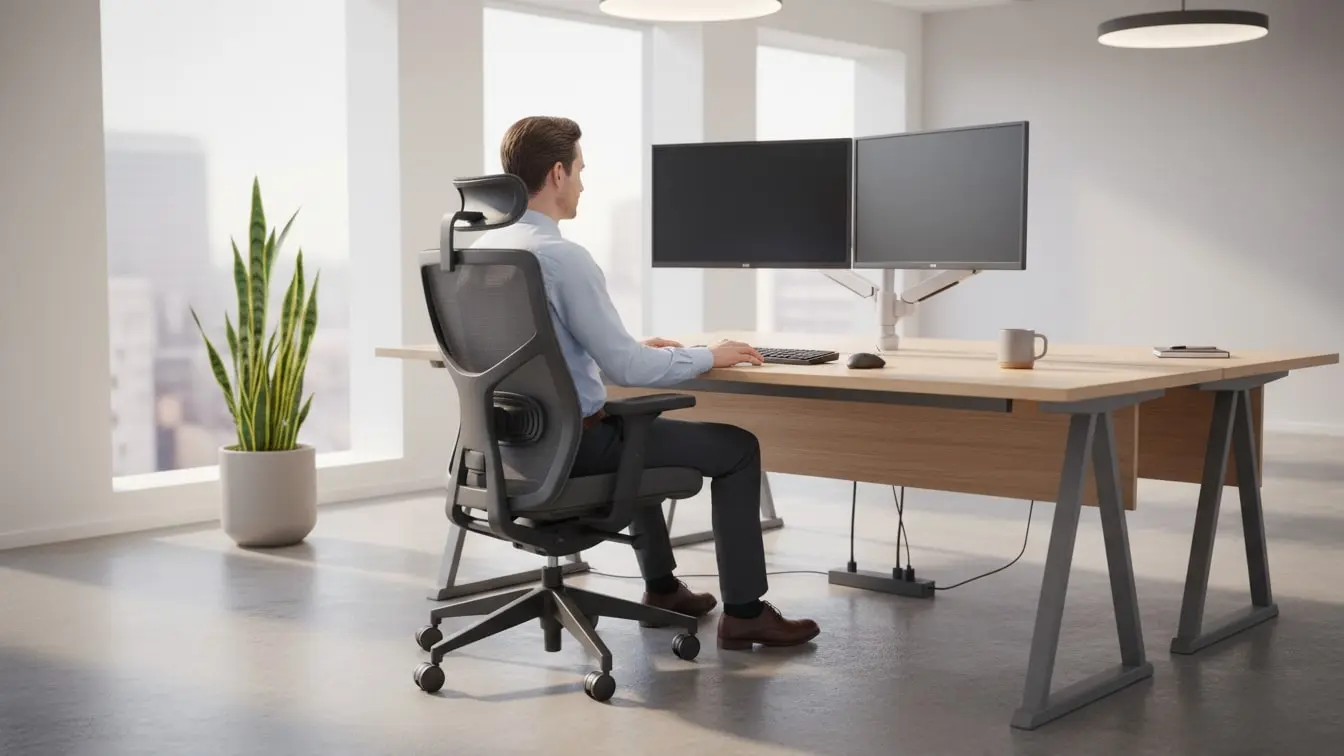
Ergonomic Workstation Audit: Complete Checklist and Documentation Guide
An ergonomic workstation should help people work with less strain. However, many workstations slowly become uncomfortable. A monitor gets moved. A chair loses its settings. A laptop replaces a desktop. Then, small changes can lead to poor posture, awkward reaching, or long periods in one position. That is why an Ergonomic Workstation Audit matters. It gives teams a simple way to review how a person works, how the workstation is set up, and where improvements may help.
A good audit should look at more than the chair and desk. It should consider the monitor, keyboard, mouse, lighting, workspace, posture, work habits, and employee feedback. It should also record clear findings and track any actions that follow.
Most importantly, the audit should fit the real work. A person may have a technically correct workstation but still work in an awkward way. Therefore, the best approach combines workstation checks with observation and employee feedback.
With eAuditor Audits & Inspections, teams can turn this process into a clear digital workflow. They can build an ergonomic checklist, complete assessments on site, record findings, add evidence, assign corrective actions, and keep completed reports for future review.
What Is an Ergonomic Workstation Audit?
An Ergonomic Workstation Audit is a structured review of a person's workstation, equipment, posture, work environment, and work habits.
The aim is to identify conditions that may create unnecessary physical strain. These conditions can include poor monitor placement, unsupported feet, an unsuitable chair, awkward wrist positions, limited legroom, glare, or repeated reaching.
The audit can also look at how employees use the workstation. After all, a workstation does not work on its own. The employee interacts with the desk, chair, screen, keyboard, mouse, tools, and other equipment throughout the day.
Therefore, the audit should focus on the complete work setup rather than one item at a time.
Why Conduct an Ergonomic Workstation Audit?
A workstation can look fine at first glance and still create discomfort. For example, a monitor may be too low. A chair may not support the lower back. A mouse may sit too far away. A laptop may force the user to look down for long periods.
These issues may seem small. However, repeated exposure can make work less comfortable and may contribute to musculoskeletal strain.
Regular audits help teams find these issues early. They also give employees a chance to explain what does and does not work for them.
In addition, an audit creates a documented process. Instead of relying on informal comments such as “the desk feels uncomfortable,” the team can record the workstation condition, identify the concern, and define a practical action.
What Should an Ergonomic Workstation Audit Cover?
A complete audit should cover the full workstation and the way the employee uses it.
Key areas include:
- Workstation layout
- Desk height
- Chair adjustment
- Lumbar support
- Seat depth
- Armrests
- Monitor height
- Monitor distance
- Screen position
- Glare and reflections
- Keyboard position
- Mouse position
- Wrist posture
- Legroom
- Foot support
- Lighting
- Noise
- Temperature and comfort
- Repetitive tasks
- Static working positions
- Work habits
- Employee feedback
- Training
- Equipment condition
- Corrective actions
The exact checklist should match the work. An office worker, call center employee, designer, laboratory worker, and mobile worker may all need different checks.
Start With Basic Assessment Information
Every audit should begin with clear identification details.
Record:
- Employee name or identifier
- Department
- Workstation location
- Assessment date
- Assessment time
- Assessor name
- Job role
- Main tasks
- Equipment used
- Previous findings
- Previous corrective actions
These details make the assessment easier to track. They also help teams compare future assessments with earlier records.
Review the Desk and Work Surface
The desk should provide enough space for the employee to work without unnecessary reaching or twisting.
Check whether the desk height supports a comfortable working position. Also, check whether the employee can place frequently used items within easy reach.
The work surface should not force the employee to raise the shoulders or bend the wrists. Likewise, the employee should have enough space to move the legs freely.
If the desk can adjust, record whether the employee has set it to a suitable height. If it cannot adjust, consider whether other changes can improve the overall setup.
Assess the Chair
The chair plays a major role in workstation comfort.
Check whether the chair:
- Adjusts to the employee's height
- Supports the lower back
- Provides suitable seat depth
- Has stable movement
- Provides suitable armrests
- Allows comfortable positioning
- Has no damaged parts
- Supports a balanced sitting position
The employee should also be able to sit without pressure behind the knees.
However, do not assume that one chair setting works for everyone. Different people have different body sizes, tasks, and preferences. Therefore, the audit should record whether the chair actually supports the person using it.
Check Posture and Body Alignment
Posture checks should focus on natural working positions.
Look at the head, neck, shoulders, elbows, wrists, back, legs, and feet.
For example, check whether:
- The head remains reasonably aligned with the torso.
- The neck does not stay bent forward for long periods.
- The shoulders remain relaxed.
- The elbows stay close to the body.
- The forearms remain in a comfortable position.
- The wrists stay reasonably straight.
- The back receives suitable support.
- The thighs have enough clearance.
- The feet have stable support.
The eAuditor OSHA Ergonomic Computer Workstation Checklist uses detailed checks for head, neck, torso, shoulders, elbows, wrists, legs, feet, and clearance under the workstation.
Assess Monitor Position
The monitor can strongly affect neck and upper-body posture.
Check the screen height, distance, angle, and position. The employee should be able to view the screen without repeatedly bending the head or twisting the neck.
Also, check glare and reflections. Poor screen visibility may cause employees to lean forward or change their posture to see the display.
For multiple monitors, consider which screen the employee uses most. The primary screen should suit the main task. If the employee uses several screens equally, the arrangement should allow comfortable viewing without excessive head movement.
The eAuditor OSHA Computer Workstation Checklist includes checks for monitor height, viewing distance, direct positioning, multiple-monitor setup, glare, brightness, and contrast.
Review Keyboard and Mouse Position
Keyboard and mouse placement should support comfortable arm and wrist positions.
Check whether the keyboard sits at a suitable height. The employee should not need to lift the shoulders or bend the wrists sharply while typing.
The mouse should remain close enough to avoid repeated overreaching. Also, check whether the employee uses the mouse for long periods and whether the task creates repetitive movement.
If the workstation includes a laptop, check the complete setup. A laptop screen and keyboard can make it difficult to maintain a comfortable position during long periods of work. In such cases, the audit may identify the need for additional equipment or a different workstation arrangement.
Check Legroom and Foot Support
Employees need enough space under the desk to move naturally.
Inspect the area below the work surface. Look for storage boxes, computer equipment, cables, drawers, or other objects that restrict leg movement.
The employee's feet should have stable support. If the work surface cannot adjust enough to suit the employee, a suitable footrest may help.
This check matters because poor lower-body support can affect the overall sitting position. Therefore, do not focus only on the upper body.
Review Lighting and Glare
Good lighting supports comfortable work.
Check whether the workstation has enough light for the tasks being performed. At the same time, check for glare on monitors and reflective surfaces.
Natural light can be useful, but direct sunlight may create screen glare. Therefore, the audit should consider the position of windows, screens, blinds, and task lighting.
Where needed, record the adjustment that could improve the setup. This might include changing the monitor position, adjusting blinds, or adding suitable task lighting.
Check the Work Environment
Ergonomics also includes the wider work environment.
Depending on the workplace, assess:
- Noise
- Temperature
- Air movement
- Lighting
- Available space
- Workspace organization
- Distractions
- Equipment placement
The employee should have enough space to work without unnecessary movement or obstruction.
A workstation that is crowded or poorly organized can encourage awkward reaching. Therefore, simple workspace changes may sometimes solve a problem without requiring new furniture.
Assess Work Habits
A workstation audit should not only inspect equipment. It should also consider how the employee works.
Look for long periods in one position, repeated movements, awkward reaches, frequent twisting, and tasks that require sustained effort.
Also, ask whether employees can vary their position or task when the work allows it.
The goal is not to judge the employee. Instead, the goal is to understand the work pattern and identify practical improvements.
Gather Employee Feedback
Employee feedback can make the audit much more useful.
Ask questions such as:
- Does the workstation feel comfortable?
- Is any part of the workstation difficult to adjust?
- Do you need to reach too far for common items?
- Does the screen feel comfortable to view?
- Is the chair supportive?
- Do you have enough space?
- Do any tasks feel repetitive?
- Do you have difficulty using the equipment?
- What would make the workstation easier to use?
This conversation can reveal issues that a visual inspection may miss.
For example, an assessor may see a standard chair and assume it works well. The employee may explain that the seat depth does not suit them or that the armrests interfere with the desk.
Therefore, employee feedback should form part of the documented audit.
Review Equipment and Accessories
Check the condition and suitability of workstation equipment.
Depending on the role, this can include:
- Chairs
- Desks
- Monitors
- Keyboards
- Mice
- Laptop stands
- Footrests
- Document holders
- Headsets
- Adjustable monitor arms
- Task lighting
- Other ergonomic accessories
Do not add equipment simply because it appears on a standard checklist. First, understand the task and the problem.
For example, if the monitor sits too low, raising the monitor may solve the issue. If that change makes the keyboard too high, a separate keyboard may then become useful.
The audit should encourage solutions that address the actual problem.
Document Ergonomic Findings Clearly
A strong audit needs clear notes.
Avoid comments such as:
“Poor posture.”
That statement does not explain what happened.
Instead, write:
“Employee's monitor is positioned below a comfortable viewing height, causing the employee to bend the neck forward while reading.”
This gives the team more useful information.
Similarly, avoid writing:
“Chair issue.”
Instead, record:
“Chair backrest does not provide adequate lower-back support and cannot be adjusted.”
Specific notes make corrective actions easier to assign.
Capture Supporting Evidence
Photos can help document workstation conditions.
For example, an assessor may photograph:
- Monitor position
- Chair adjustment
- Desk setup
- Cable arrangement
- Lighting conditions
- Equipment placement
- Workspace organization
However, photos should support the written finding. They should not replace it.
A clear observation explains what the assessor noticed and why it matters. The image then gives the team a visual reference.
Rate Findings Consistently
Not every ergonomic issue has the same priority.
A minor adjustment may need a simple workstation change. A repeated or significant concern may require a broader review.
Therefore, organizations should define clear assessment categories. These might include:
- Compliant
- Improvement needed
- Action required
- Not applicable
Where a risk-rating system is used, teams should apply it consistently.
The important point is to make the rating useful. A score should help the team decide what to do next rather than simply add another number to the report.
Create Corrective Actions
Once the assessor identifies an issue, define a practical action.
For example:
- Raise the monitor.
- Adjust the chair.
- Reposition the keyboard.
- Move the mouse closer.
- Clear under-desk storage.
- Provide a suitable footrest.
- Improve task lighting.
- Reorganize frequently used items.
- Review repetitive work.
- Provide ergonomic guidance.
- Replace damaged equipment.
Each action should have a clear owner where appropriate.
Also, set a reasonable due date. Then, review the action after completion to confirm that the change actually helped.
How eAuditor Audits & Inspections Handles Ergonomic Workstation Audits
eAuditor Audits & Inspections can turn an Ergonomic Workstation Audit into a structured digital process.
Teams can start with an ergonomic checklist and adapt it to their workplace. The eAuditor ergonomic resources cover workstation setup, chair ergonomics, monitor placement, keyboard and mouse positioning, lighting, work habits, employee feedback, and corrective actions.
This makes it easier to create one consistent assessment process across departments.
Build a Digital Ergonomic Workstation Checklist
Start by creating a checklist that reflects the actual work.
A practical template can include:
- Employee and workstation information
- Desk and work surface
- Chair
- Posture
- Monitor
- Keyboard
- Mouse
- Legroom
- Foot support
- Lighting
- Work environment
- Work habits
- Employee feedback
- Equipment condition
- Findings
- Corrective actions
- Follow-up
- Sign-off
Teams can then add or remove sections based on the workplace.
Conduct the Audit on the Job
An ergonomic audit works best when the assessor observes the workstation while the employee performs normal work.
Instead of checking an empty desk, observe the employee using the equipment. Watch how they sit, reach, type, view the screen, use the mouse, and move between tasks.
With eAuditor, inspectors can complete the digital checklist during the assessment and record findings as they occur. eAuditor's ergonomic inspection resources describe real-time data entry, evidence capture, and digital reporting as part of the workflow.
Capture Photos and Notes in One Workflow
Digital evidence helps keep the audit together.
An assessor can record an observation and add a photo of the workstation. This creates a stronger record than a separate note that simply says “monitor too low.”
The same process can also support follow-up. Once the workstation is changed, the team can record the correction and add new evidence where needed.
Assign and Track Corrective Actions
eAuditor can connect findings with corrective actions.
For example, an assessor can record that a monitor needs adjustment. The responsible person can then receive the action, complete the change, and provide confirmation.
This creates a clear link between:
Finding → Action → Owner → Completion → Follow-up
That link is important because an ergonomic audit should lead to improvement rather than simply create another completed form.
eAuditor's ergonomic audit resources describe assigning corrective actions, setting deadlines, tracking progress, and generating reports from assessment data.
Generate Clear Ergonomic Audit Reports
Once the assessment is complete, the organization needs a useful record.
A digital report can bring together the assessment details, responses, findings, evidence, and corrective actions.
This makes the report easier to review. It also gives managers a clear view of what needs attention.
Over time, completed assessments can help teams identify repeated issues across workstations or departments.
Use Audit Results for Improvement
An ergonomic audit should not end when the report is created.
Review the results and look for patterns.
For example, several employees may have low monitors. Another group may have limited desk space. A department may have repeated complaints about lighting.
These patterns can point to wider improvements.
Instead of adjusting each workstation separately, management may decide to review furniture standards, equipment purchasing, workstation design, or employee training.
Ergonomic Workstation Audit Checklist
Use the following as a practical starting point:
- Employee and department details recorded
- Workstation location recorded
- Desk height reviewed
- Desk space reviewed
- Legroom checked
- Chair height checked
- Chair backrest checked
- Lumbar support checked
- Seat depth reviewed
- Armrests reviewed
- Head and neck position observed
- Shoulder position observed
- Elbow position observed
- Wrist position observed
- Feet supported
- Monitor height checked
- Monitor distance checked
- Monitor alignment checked
- Multiple monitors reviewed
- Glare checked
- Keyboard position checked
- Mouse position checked
- Repetitive movements reviewed
- Static positions reviewed
- Lighting checked
- Workspace organization checked
- Equipment condition checked
- Employee feedback recorded
- Findings documented
- Evidence attached where useful
- Corrective actions assigned
- Follow-up completed
- Assessment signed off
Common Ergonomic Workstation Audit Mistakes
Focusing Only on the Chair
A good chair cannot fix every ergonomic problem. Monitor height, keyboard position, desk height, lighting, and work habits also matter.
Therefore, review the complete workstation.
Inspecting Without Speaking to the Employee
An assessor may see the physical setup but miss how the employee experiences it.
Always allow the employee to explain what feels difficult or uncomfortable.
Using Vague Findings
Comments such as “poor ergonomics” do not help much.
Instead, describe the condition, location, and required improvement.
Treating Every Workstation the Same
People have different tasks and different workstation needs.
Therefore, use a consistent assessment method but allow practical adjustments for the person and task.
Closing the Audit Without Follow-Up
An adjustment is not automatically successful because someone completed it.
Check the workstation again when needed. Confirm that the change solved the original problem.
Best Practices for Ergonomic Workstation Audits
Keep the checklist simple enough to use regularly. At the same time, make sure it covers the risks that matter.
Use plain questions. Record specific observations. Encourage employee feedback. Add evidence when it helps. Assign actions clearly. Then, review the results.
Also, update the checklist as work changes.
For example, a company may introduce more laptop work, new monitors, standing desks, new software, or different office layouts. These changes can affect workstation needs.
Therefore, the audit should evolve with the workplace. https://eauditor.app/2026/09/28/ergonomic-workstation-audit-complete-checklist/


Comments
Post a Comment